
Convert text to speech and export an MP3
Export a recording from your Neural Reader library to keep a personal copy or bring narration into your video or audiobook project. A paid subscription includes permission to publish and monetize your exports under the creator-use license.
Create and save the recording
Choose a cloud voice
In Settings → Voice, choose a voice without the “Offline Voice” label. Stay connected while you generate the recording and export it.
Add your text
Tap + and choose Read aloud, then tap Text to paste a passage or select another source such as a file. Review the text and tap Read.
Export the audio item
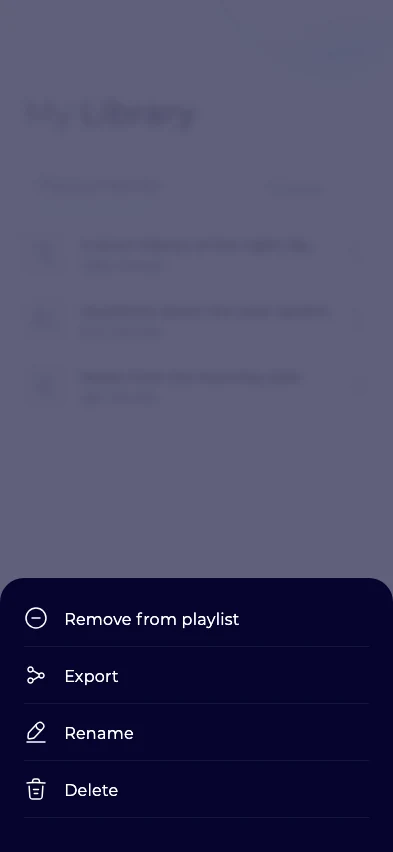
After generation finishes, open the audio item’s menu in your library and tap Export. Export uses the file type of the item you select, so choose the audio recording for an MP3.
Save or share the MP3
Choose a local destination or another app from your device’s share menu. Open the saved copy to check it plays before going offline.
Check for a saved audio recording
Device voices read text in the offline player and do not create a recording in the library. Select a cloud voice and generate the text again if you need a file to export.
Generation can be limited by your plan and available word balance. For a long source, pick the relevant section and check the finished audio before exporting it.
Use your MP3 in a project
A paid subscription includes permission to publish and monetize MP3s you generate and export during a paid billing period. The same permission applies to every voice available for MP3 export and stays with those recordings after the subscription ends. Free and trial exports are for personal, non-commercial use.
Use text you wrote or have the rights to narrate and publish. For a video, record a short passage first to check pronunciation and pacing, then add the MP3 to your editor. For an audiobook, keep the same voice across chapters and check whether your distributor accepts synthetic narration.
Keep the files easy to recognize
Rename a recording in your library before exporting to give the MP3 a useful name. If you export several parts of a document, include the chapter title or page range in each name.