Share files, links, and photos to Neural Reader
Start where you found the reading. Send a PDF from your file manager, an article from your browser, or printed pages from your photo library straight to Neural Reader.
Send something to Neural Reader
Open the source
Open one PDF in your file manager, the article itself in your browser, or select photos of the pages you want read.
Tap Share and choose Neural Reader
Look for Neural Reader in the app list. If you just installed it, open it once to finish setup. Then return to the source and share it again.
Choose Read aloud
For a PDF, choose all pages or a range. For a web link, check the address and tap Continue. For photos, put the pages in order before extracting the text.
Check the text and tap Read
Remove anything you don’t want spoken, such as a menu or a repeated header. You can return to a cloud recording in your library and resume later.
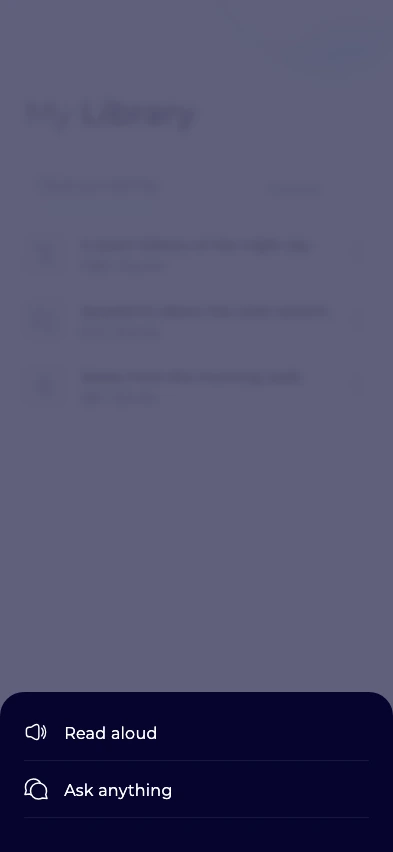
Choose Read aloud to turn the shared source into audio.
View full-size screenshotIf Neural Reader is missing from Share
On iPhone or iPad, check the full list of apps under More. On Android, expand the share panel to see more apps. Share from a different app if the source app only offers its own shortcuts.
You can also open Neural Reader, tap +, and choose Read aloud. Use File for a saved document, Web article for a copied address, or Photos for images of pages.
Start with the part you want to hear
For a long PDF, pick just the abstract or chapter you need. For a photo, use a sharp, well-lit image and check names and numbers after extraction. If an article requires a sign-in, paste text you can access and have permission to use instead.