Read web articles aloud on your phone
Turn an article you have saved for later into a recording you can listen to on a walk or a commute. Start with a link to the article itself.
Turn an article link into audio
Share the article from your browser
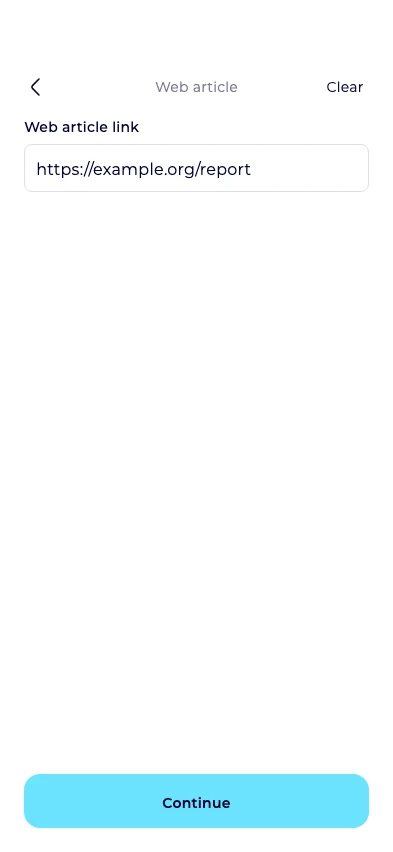
Open the article, tap Share, and choose Neural Reader. Select Read aloud to open the Web article screen with the link filled in.
Continue with the link
Tap Continue. If Neural Reader doesn’t appear in the Share menu, copy the link and open Neural Reader. Tap +, choose Read aloud, then Web article to paste the address.
Check the article text
In Extracted text, check that the piece starts at the right paragraph and reaches the end. Remove navigation, promotions, and captions you do not want to hear.
Read aloud
Tap Read to create the recording. Use the player’s speed control to find a comfortable pace, or return to the recording in your library later.
When a link won’t import
Open the link in your browser and check that it points directly to the article. A home page, a sign-in screen, or a preview page may return different text from the piece you want.
If the page requires an account or does not extract cleanly, copy the portion you can access and have permission to use. Choose Read aloud → Text and paste it there.
Prepare the article for listening later
For a long article, start with the section you want to hear and check the extracted text before creating the recording. Export the finished audio while connected if you want to take an MP3 with you.